Download
FocusProof 1.0.1
A free, native Mac application. A 5.8 MB disk image for macOS 15 or later, on Apple silicon and Intel.
File FocusProof-1.0.1.dmg
- Version
- 1.0.1 (6)
- Released
- 6 August 2026
- Channel
- Stable
- Requires
- macOS 15 or later
- Architecture
- Apple silicon and Intel
- Account
- Not required
Before you start: macOS will ask you to approve it once
FocusProof is distributed independently and is not notarized by Apple. macOS requires manual approval the first time you open it.
This is expected, and it is not a sign that anything is wrong with the download. Apple’s notarization service requires a paid Developer Program membership; FocusProof is published without one. macOS therefore treats it as software from an unidentified developer and asks you to confirm, once, that you meant to open it.
The steps below are the safe route through that prompt. You will never be asked to turn off Gatekeeper, to run a Terminal command, or to lower any system-wide security setting — and if a guide anywhere tells you to do that in order to run FocusProof, ignore it.
Installing FocusProof
Seven steps, once.
-
Download FocusProof
Use the button above. Your browser saves
FocusProof-1.0.1.dmgto your Downloads folder. -
Open the disk image
Double-click the downloaded
.dmg. A window opens containing the FocusProof app and a shortcut to your Applications folder. -
Drag FocusProof into Applications
Drag the app icon onto the Applications shortcut in that same window. You can then eject the disk image.
-
Try to open FocusProof
Open your Applications folder and double-click FocusProof. macOS will refuse the first time and tell you it cannot verify the developer. Close that message — this is the step that tells macOS you tried.
-
Open System Settings → Privacy & Security
Choose the Apple menu → System Settings, then Privacy & Security in the sidebar. Scroll down to the Security section.
-
Click Open Anyway next to FocusProof
A line naming FocusProof appears there because of step 4, with an Open Anyway button. Click it. You may be asked for your Mac password or Touch ID.
-
Confirm Open
One last confirmation appears. Choose Open. FocusProof launches, and from then on it opens normally like any other app.
Having trouble? The support page covers first-launch problems in more detail, including what to do if the Open Anyway button does not appear.
What happens the first time you open it
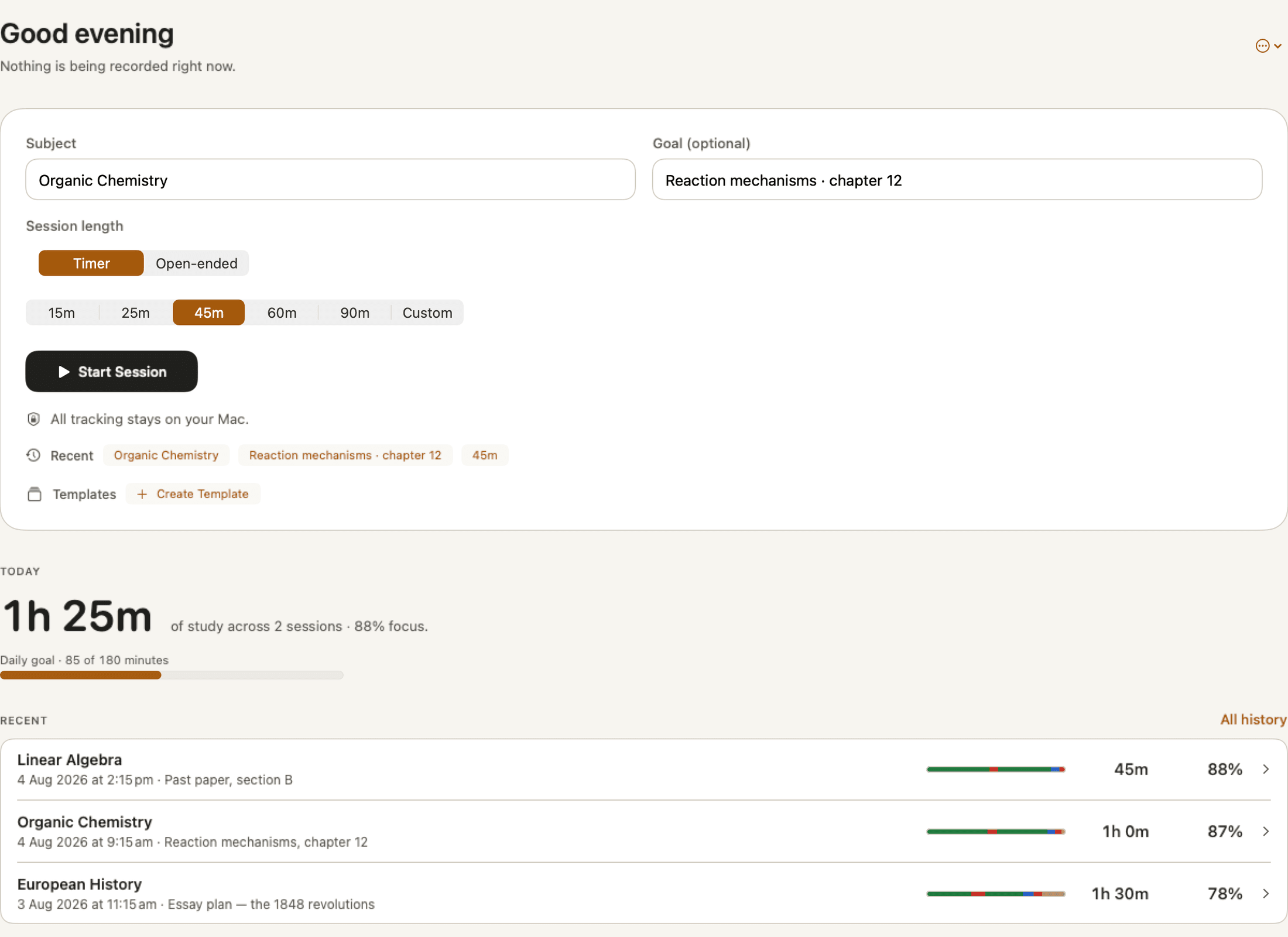
FocusProof opens on the Today screen with nothing recorded and nothing running. It will say so: Nothing is being recorded right now.
Type a subject, pick a session length, and press Start Session. That is the whole setup. There is no account to create, no onboarding questionnaire, and no data to import.
macOS may ask for permission to see which application is frontmost the first time you start a session. That permission is what lets FocusProof record application names; without it there is nothing to record.
Requirements and compatibility
- macOS 15 or later
- FocusProof will not install or run on earlier versions of macOS.
- Apple silicon and Intel
- A universal build. The same disk image works on both, and the right version is used automatically.
- Disk space
- Around 25 MB for the app. Session records are small text-scale data and grow slowly.
- Internet
- Not required to use FocusProof. The app checks the update feed for new versions, which is the only network request it makes on its own.
- Google Chrome (optional)
- With the Chrome integration set up, time spent in Chrome is recorded by site name rather than as “Google Chrome”. Everything else works without it. Safari has no equivalent integration. Setting up Chrome.
Verifying your download
If you want to confirm that the file you received is the file that was published, compare its SHA-256 checksum. In Terminal:
shasum -a 256 ~/Downloads/FocusProof-1.0.1.dmgIt should print exactly this:
17b57cdfdf3f1ace0c771ddd844421b9b1bb98b0d84e33b8cd5560e6b8719679
The published checksums are also available on the downloads site, alongside the update feed the app itself uses.
Updates
FocusProof checks for new versions using Sparkle, the standard update framework for Mac apps. When an update is available it tells you, shows what changed, and installs only if you say yes. Update checks are the one thing the app does over the network; they carry no session data.
Every release is listed on the release notes page.